Overview
You can customize the screen, i.e., the form layout of a record type, using Customize Screen Wizard.
In a form, you can customize fields and the look and feel of the screen.
This article explains how to customize a record-type screen.
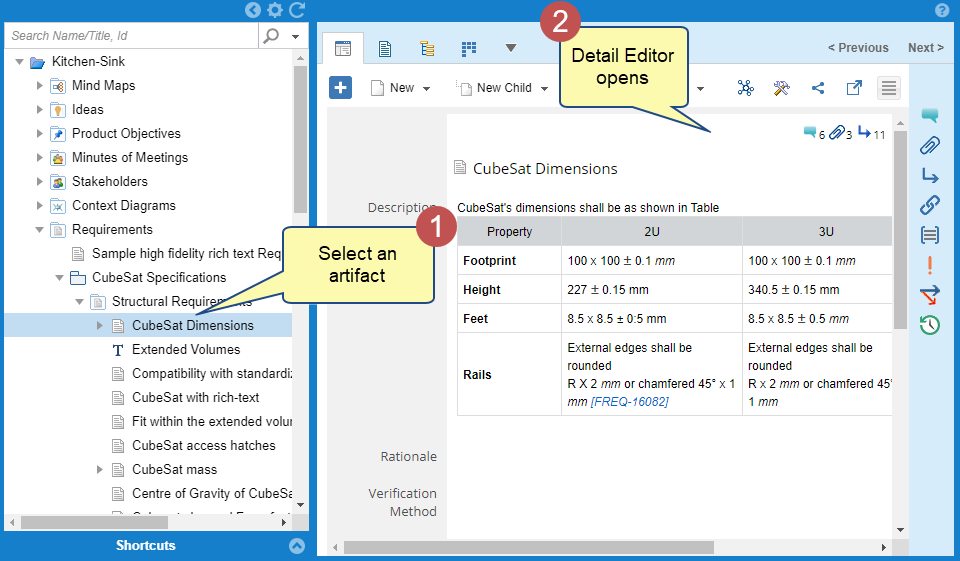
Step 1. In Repository Explorer, select an artifact of the record type whose screen you want to customize
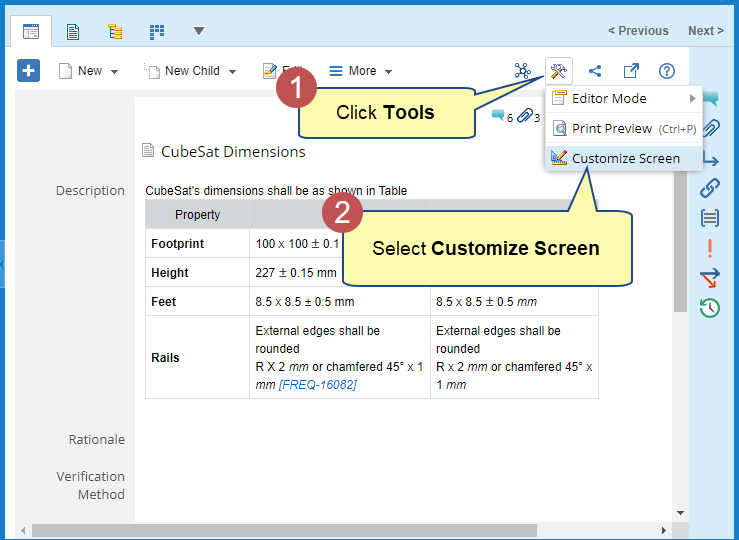
Step 2. Click Tools and select Customize Screen
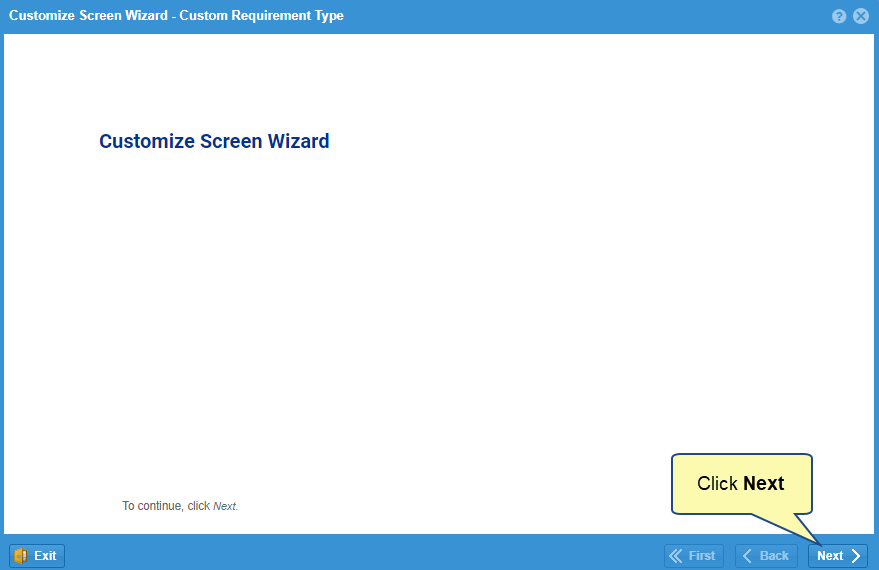
Step 3. Customize Screen Wizard starts
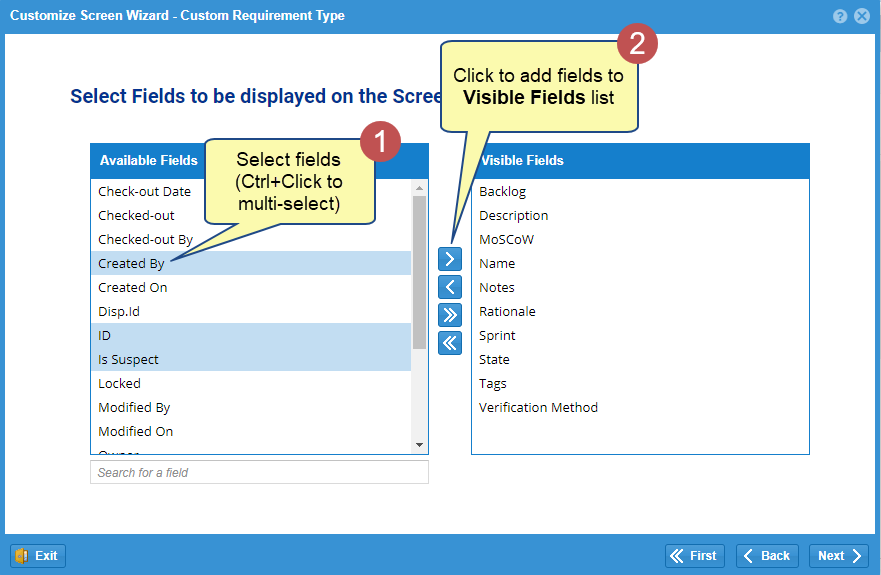
Step 4. Select Fields that you want to display on screen
|
TIP
|
|

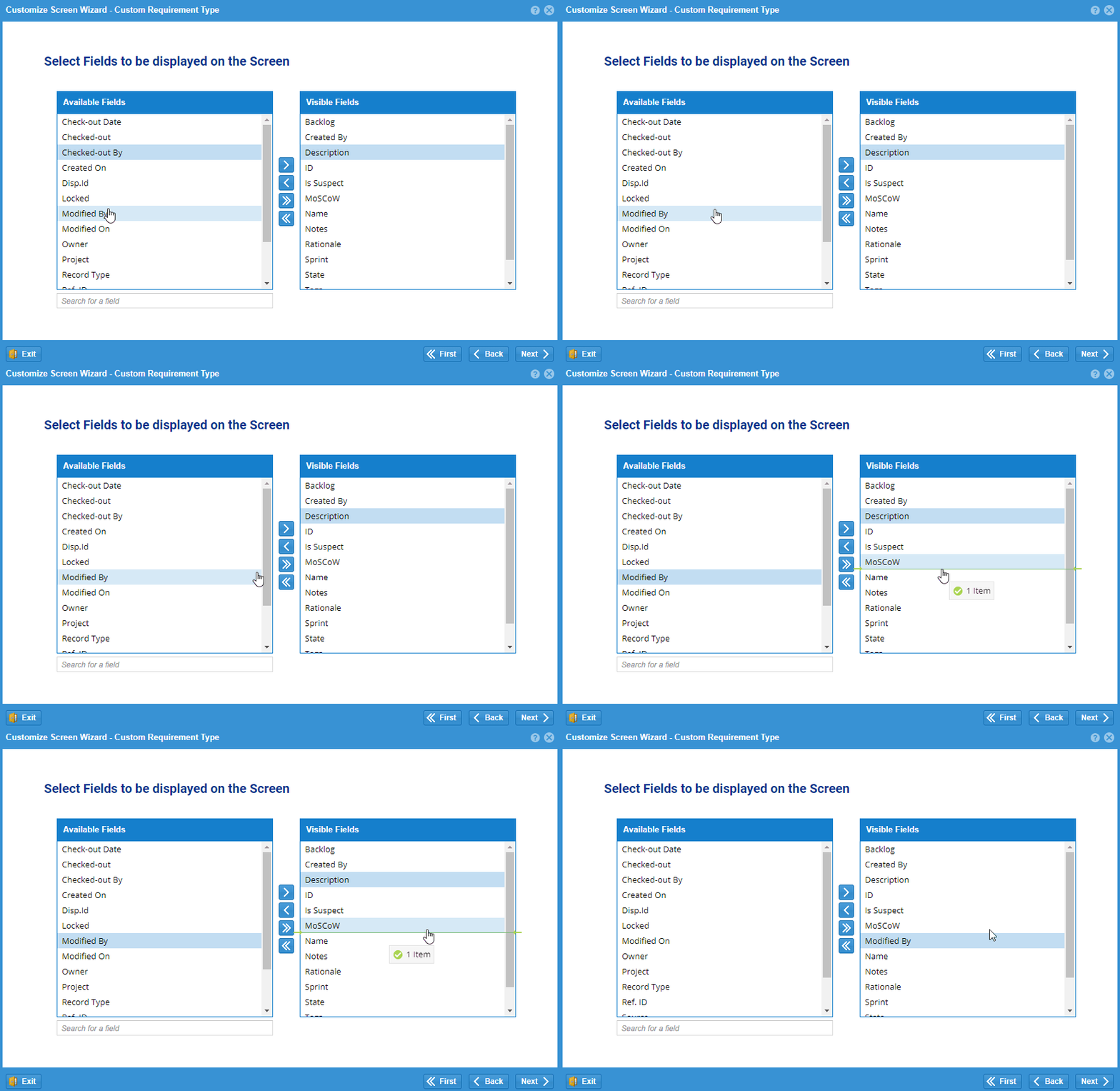
 to add all fields and click
  to remove all fields.
Step 5. Arrange Fields
You can organize fields using sections. You can change the order of fields, etc.
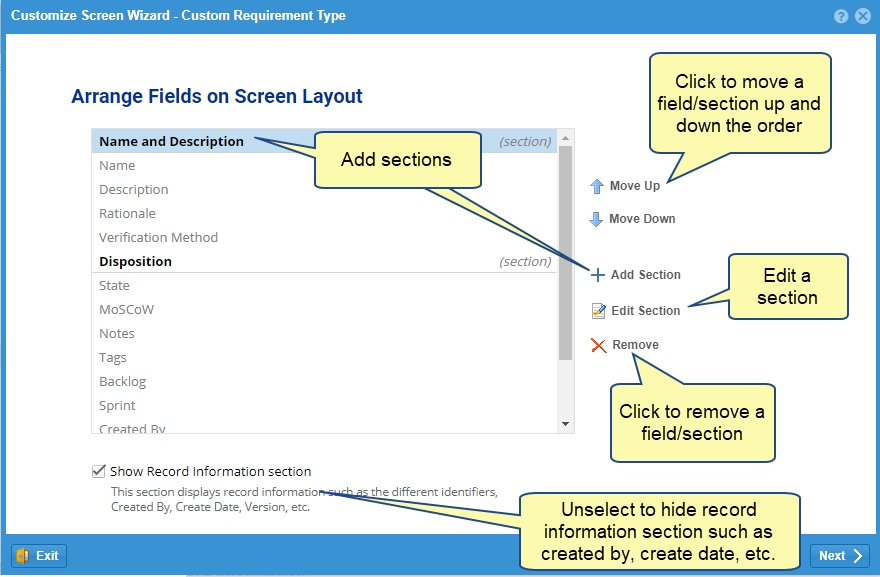
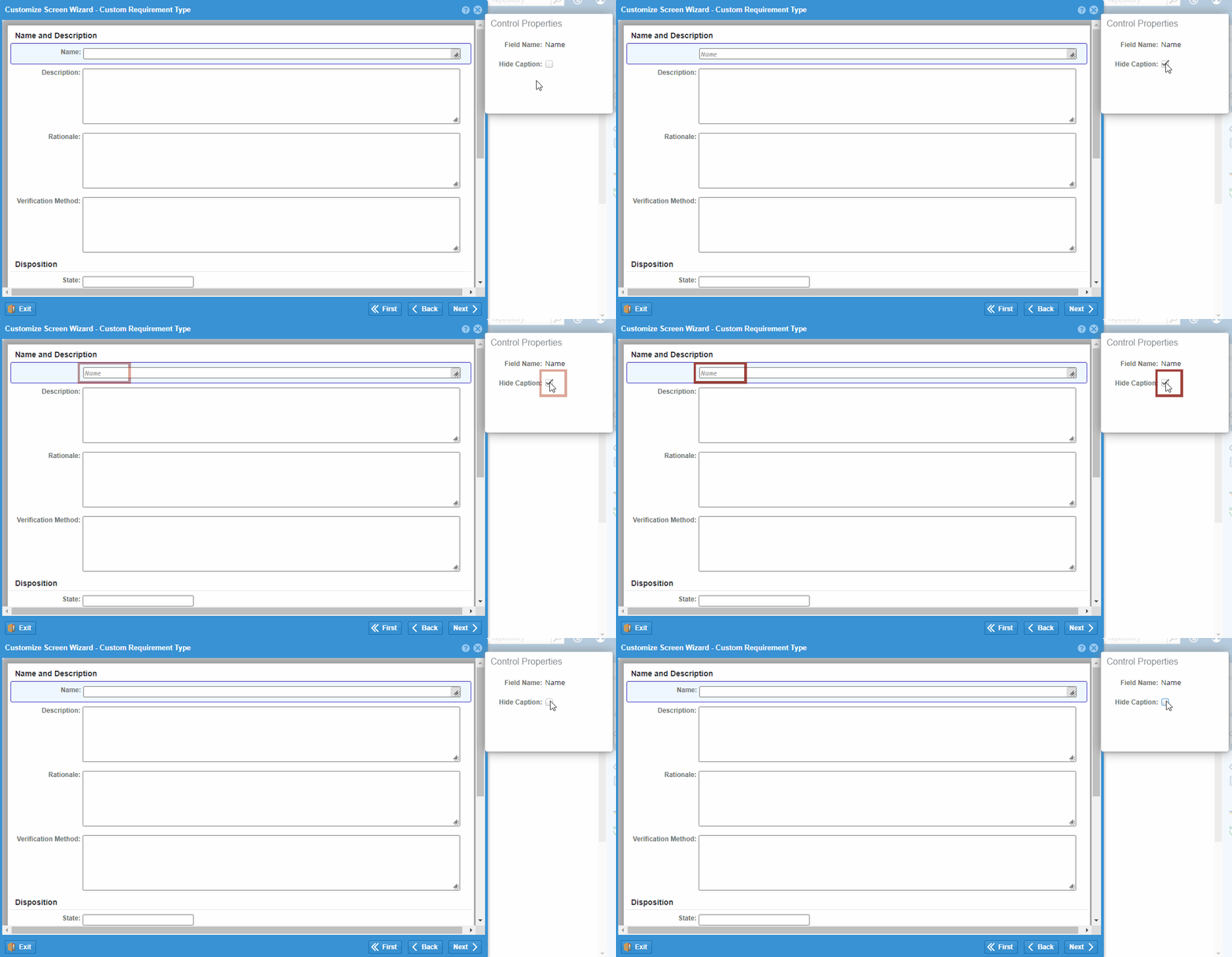
Step 6. Change Field properties
- You can Hide Caption of fields, i.e., field names will not display on the screen.
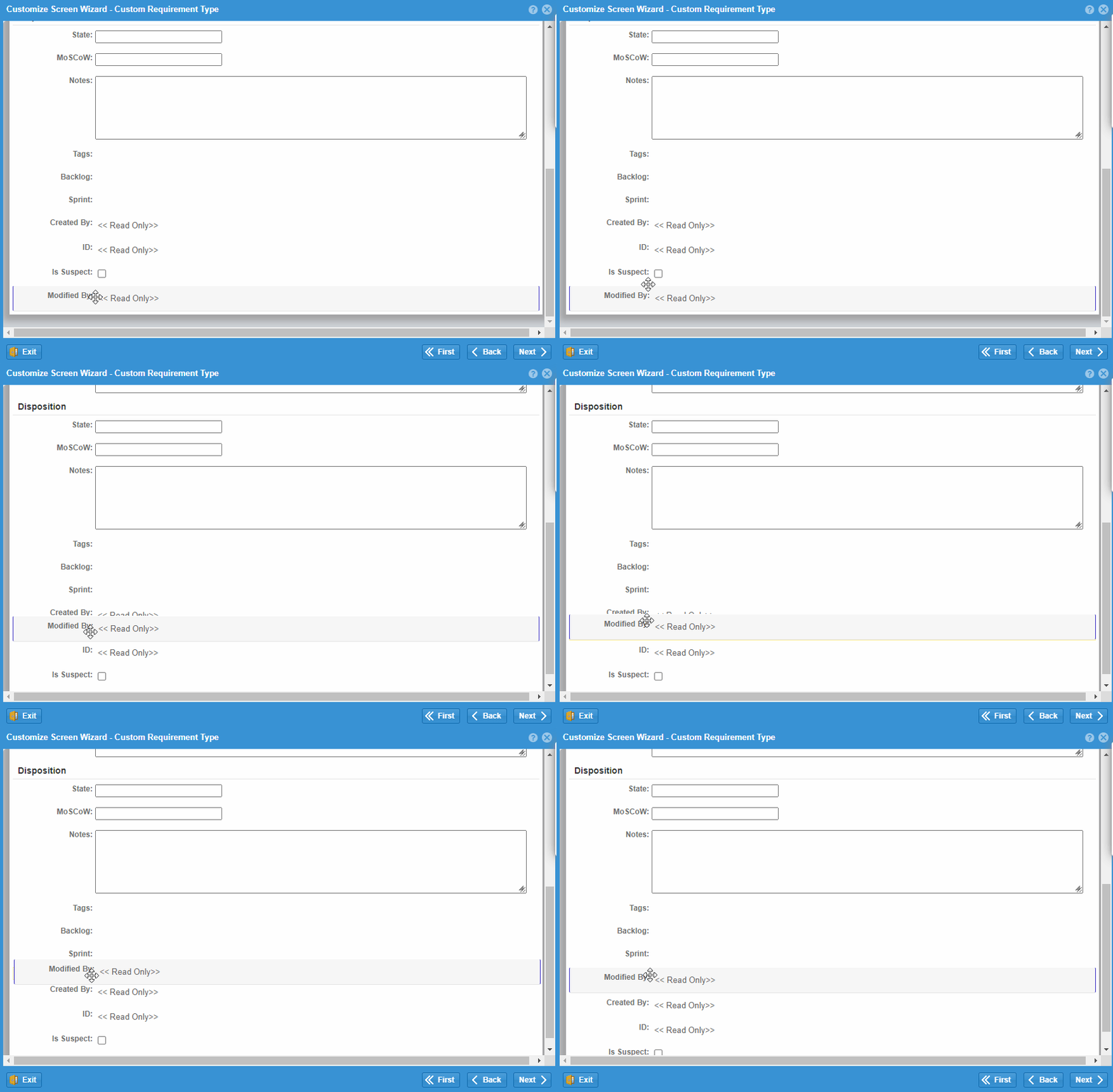
- You can drag a field to change the order
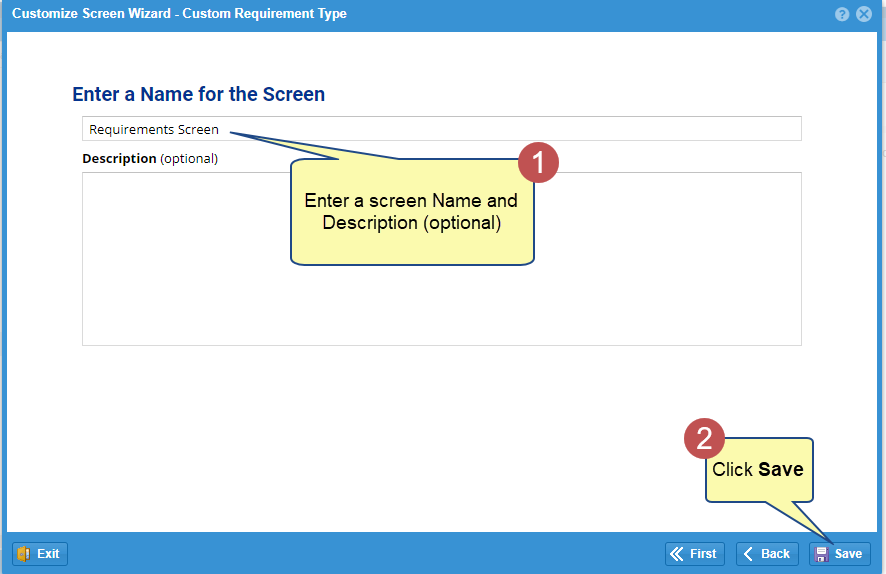
Step 7. Enter a name for the screen
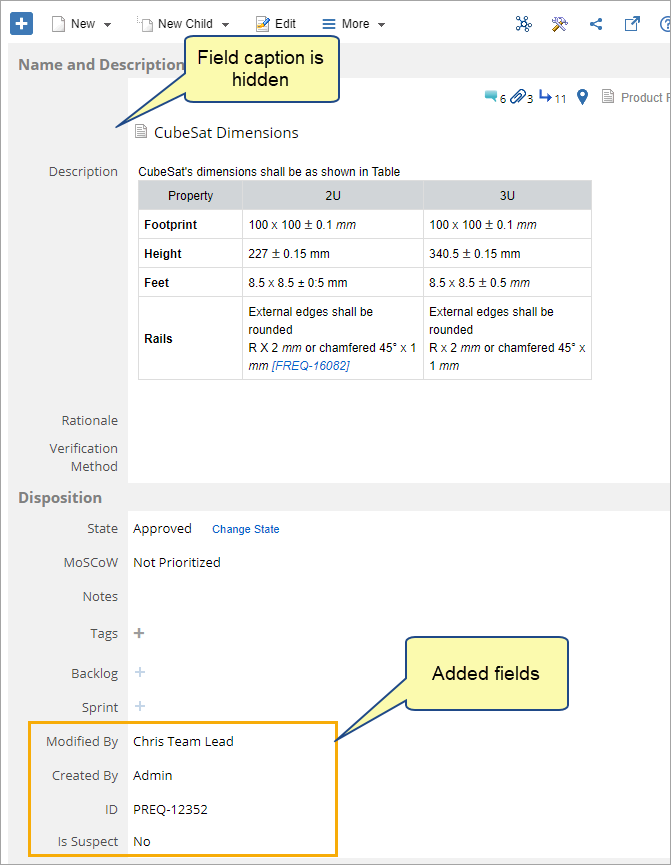
You can verify the fields added to the form layout by opening an artifact of the type whose screen has been customized
See Also
Defining Custom Fields for a Record Type
Revised: November 14th, 2023