Overview
In TopTeam, the Authentication Profile (saved credentials) feature allows you to securely store your Azure DevOps login credentials for future use. This eliminates the need to repeatedly enter your credentials, enhancing user convenience.
This article guides you through the process of setting up and maintaining a secure authentication profile.
Benefits of Authentication Profiles
- Security: This feature ensures your login information is safeguarded, eliminating the need to share your authentication details with other users who are configuring mappings or accessing your account. For instance, if you’re working in a team where multiple members need access to the same Azure DevOps project, instead of sharing your personal login details, you can create an authentication profile.
- Convenience: Once an authentication profile is saved, you can use it to connect to Azure DevOps with just a few clicks. This eliminates the need to manually enter your credentials every time, saving you time and effort.
- Consistency When setting up multiple synchronization schedules for the same synchronization profile, using a saved authentication profile ensures that the connection details are consistent every time. This can help avoid connection errors due to incorrect or inconsistent details.
- Efficiency: When a token expires, you can update the authentication profile with a new token. This means you only need to change it in one place, rather than manually entering it each time. This not only saves time but also reduces the risk of errors.
NOTE |
The Authentication Profile feature is available in TopTeam version 20.80 or later.You can verify your current TopTeam version by navigating to Help > About TopTeam Requirements in the application. |
Topics Covered
In this article, we will guide you on how to:
- View Authentication Profiles
- Create Authentication Profiles
- Use Authentication Profiles
- Modify Authentication Profiles
Prerequisites
To manage authentication profiles, you must:
- Be a System Administrator, or
- Have the Manage External Keys permission.
You can verify your permissions under Administration > Manage User Accounts in TopTeam.
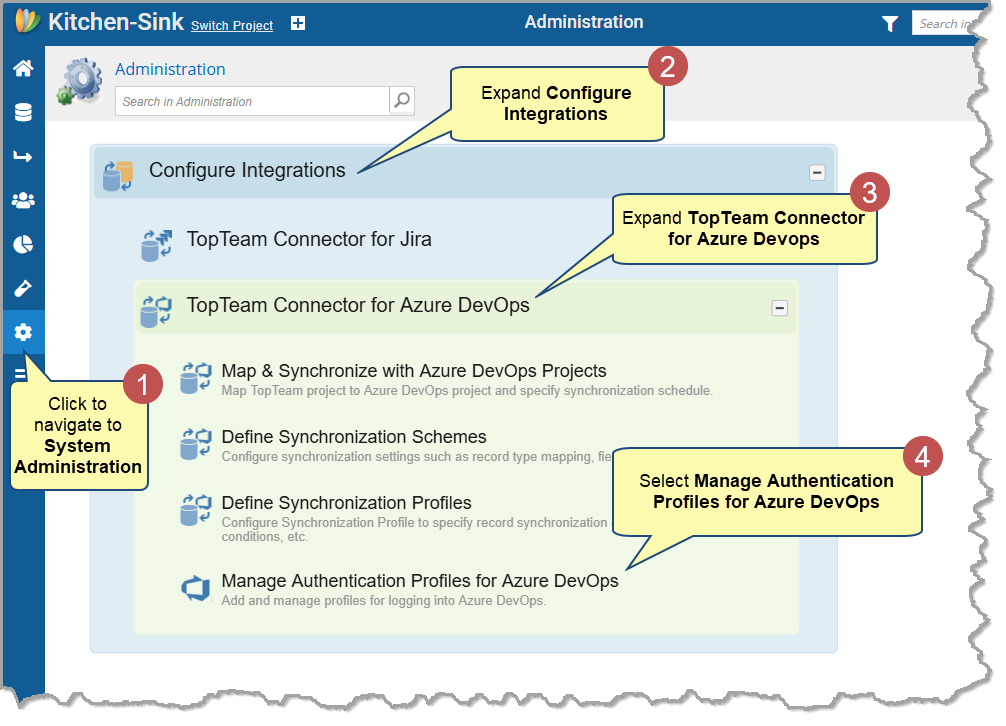
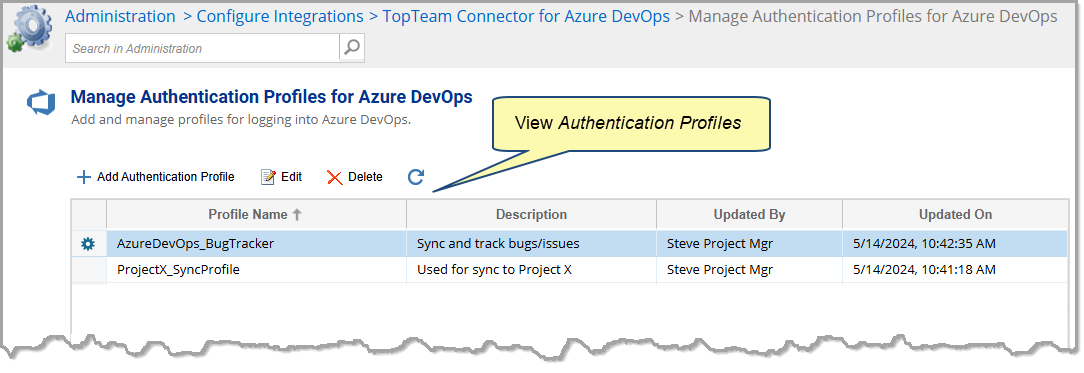
Viewing Authentication Profiles
You can view a list of all the authentication profiles created for Azure DevOps integration.
Creating Authentication Profiles
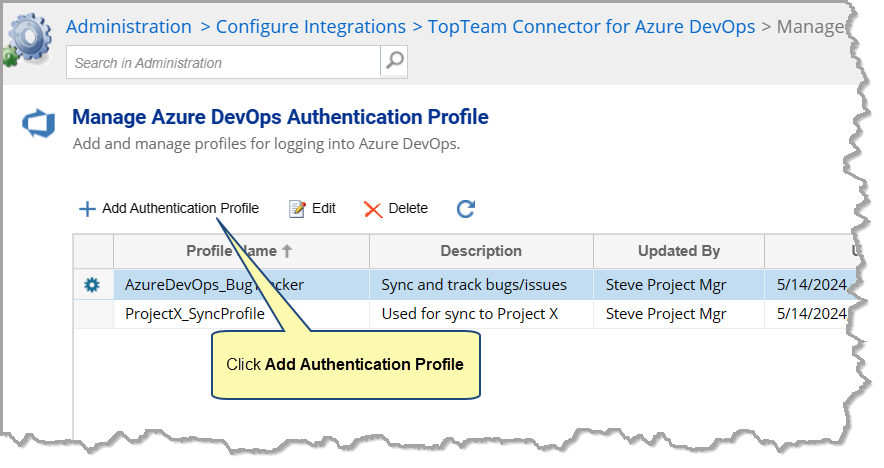
Step 1. Click Add Authentication Profile
Step 2. Specify authentication information and profile details
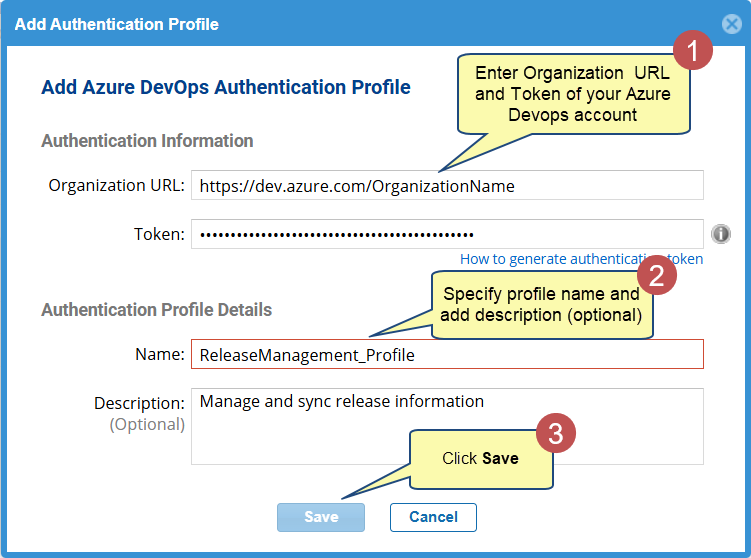
Provide the authentication information including project URL and token, and profile details such as name, and description (optional). You can find these details in your Azure DevOps account settings.
- Organization URL: The web address of your Azure DevOps organization.
- Token: A token in Azure DevOps is a security credential that can be used to authenticate access to Azure DevOps.
- Profile Details: Specify a Name and an optional Description for easy identification.
TIP |
Use How to generate authentication token to generate a new token. |
Using Authentication Profiles
Authentication profiles can be used when you:
- Create synchronization schemes
- Schedule synchronizations between TopTeam and Azure DevOps
Using a Saved Authentication Profile While Creating a Synchronization Scheme
During mapping between TopTeam record types and Azure DevOps work item types, you must connect to Azure DevOps to fetch metadata.
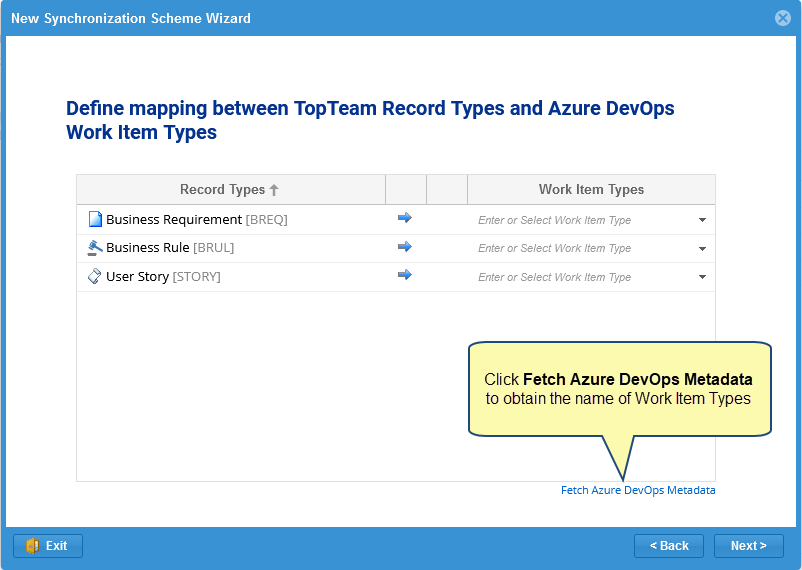
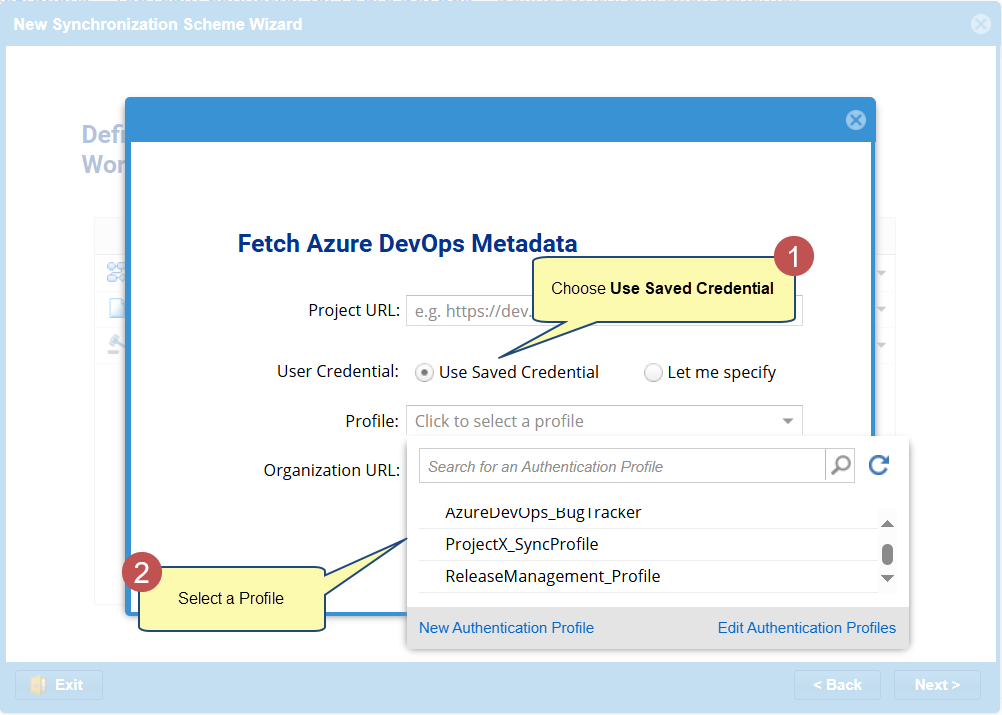
TIPS |
|
HELP |
You can access online help for Defining Synchronization Schemes from the link below:Defining TopTeam-Azure DevOps Synchronization Schemes |
Using a Saved Authentication Profile While Project Mapping
During Project Mapping, you must connect to Azure DevOps, here, you can specify an authentication profile.
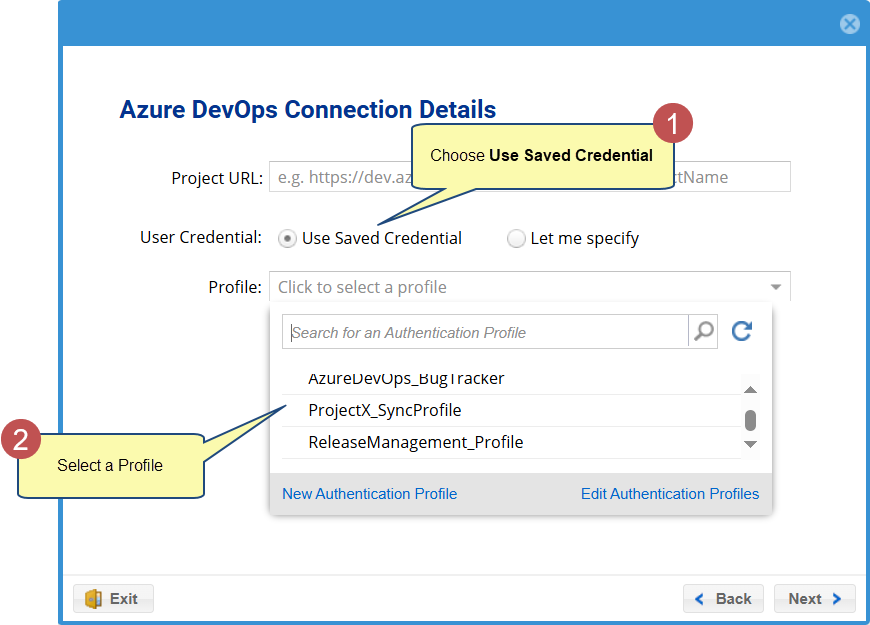
TIPS |
|
HELP |
You can access online help for Scheduling Synchronizations from the link below:Configuring a TopTeam-Azure DevOps Project Mapping for Synchronization |
Modifying Authentication Profiles
Select the authentication profile you want to modify, and then click Edit or Delete on the gear menu or toolbar. Use Edit to change the details of the profile and Delete to remove the profile completely.
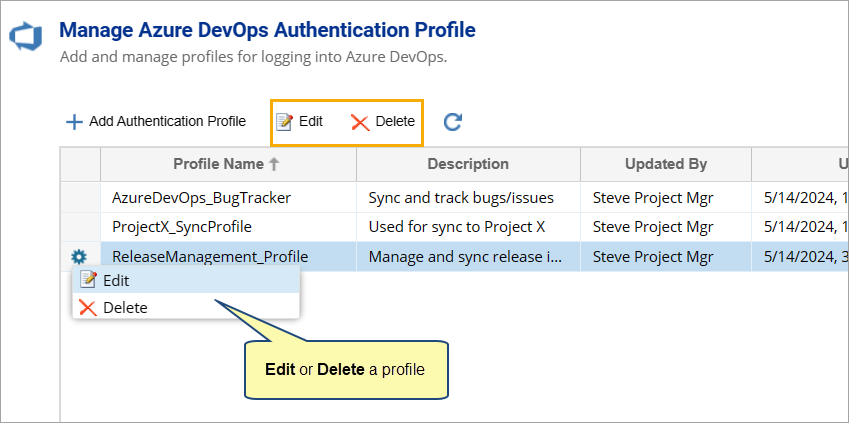
NOTE |
Editing or deleting authentication profiles in use for synchronization will result in synchronization errors and failures. Ensure that any changes to authentication profiles are made with caution to avoid disruption of services. |
See Also
TopTeam Azure DevOps Connector
Revised: October 31st, 2025