Overview
Multi-Factor Authentication (MFA) adds an additional verification step during login to enhance account security. After entering valid credentials, users must provide a one-time verification code sent to their registered email address.
In TopTeam, MFA is configurable at the system level and applies only to Native Authentication users. It is not applicable to users authenticated through LDAP, SSO, or other external authentication providers.
In this article, you will learn how to configure MFA and log in to TopTeam.
Who should read this?
- TopTeam Administrators
Prerequisites
- SMTP server is configured and reachable — MFA relies on email delivery. Ensure SMTP settings are correctly configured and test email delivery is successful. See Configuring SMTP Settings
- Users have a valid registered email address — The verification code is sent to the user’s registered email. Native Authentication users with missing or invalid email addresses cannot complete the verification process and therefore will not be able to log in.
- Administrator access to Configure Global Settings — You must be logged in with a User Account that has the System Administrator permission.
Configuring Multi-Factor Authentication
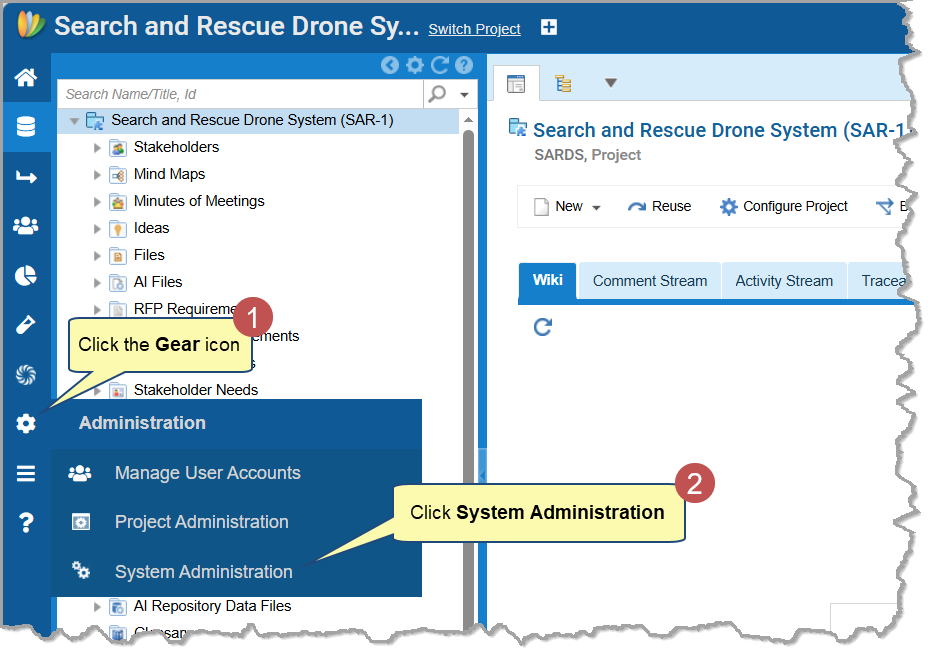
Step 1. Go to the System Administration
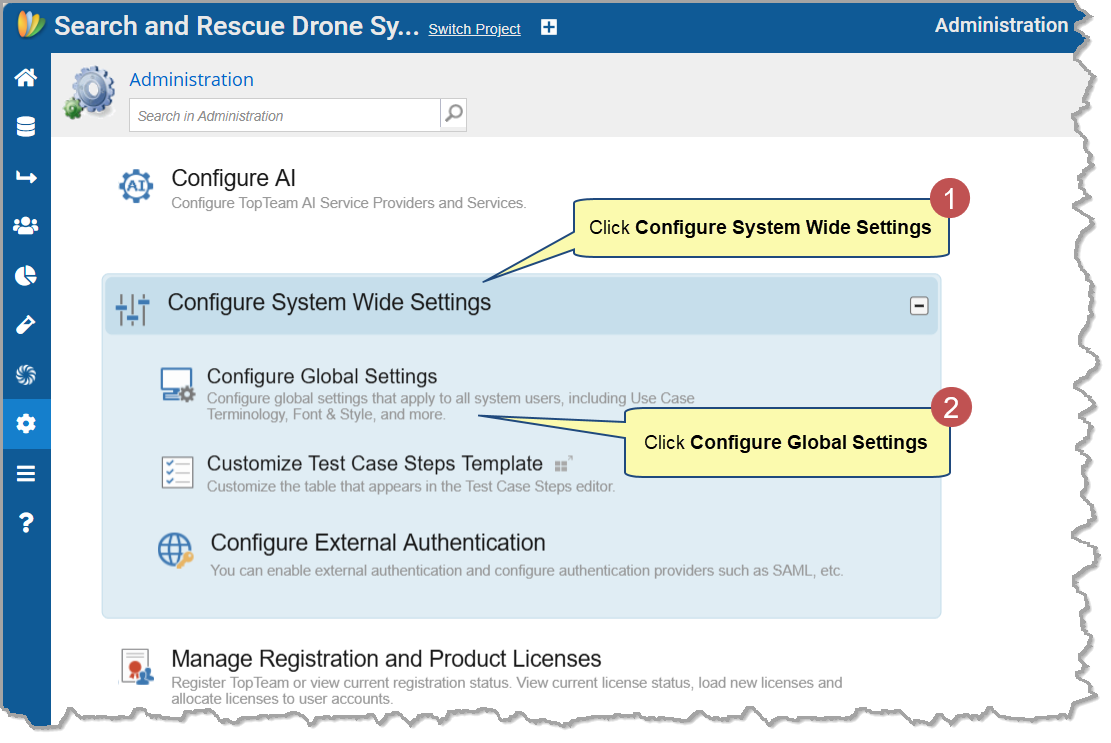
Step 2. Click Configure System Wide Settings 🡪 Click Configure Global Settings
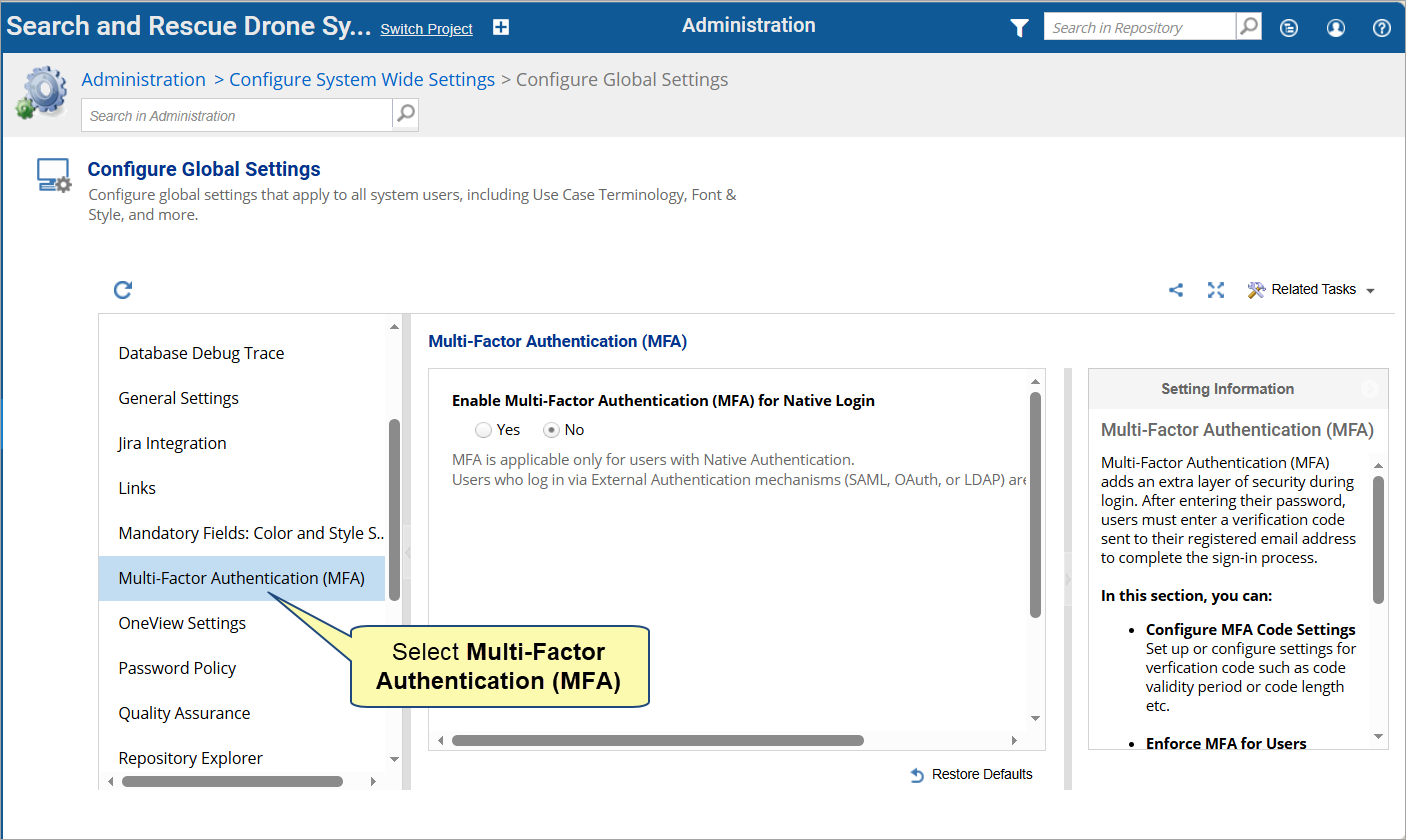
Step 3. Select Multi-Factor Authentication (MFA) Settings
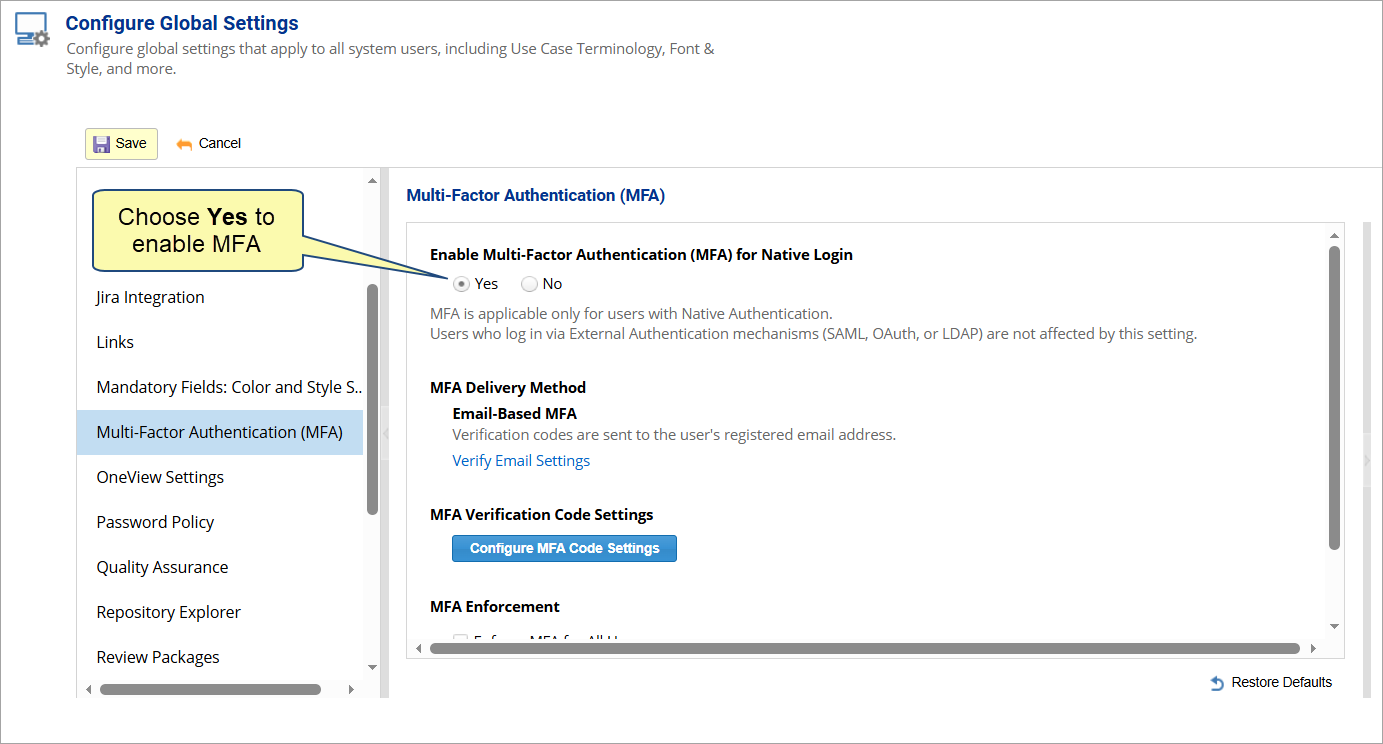
Step 4. Enable MFA
Enable MFA for Native Authentication users.
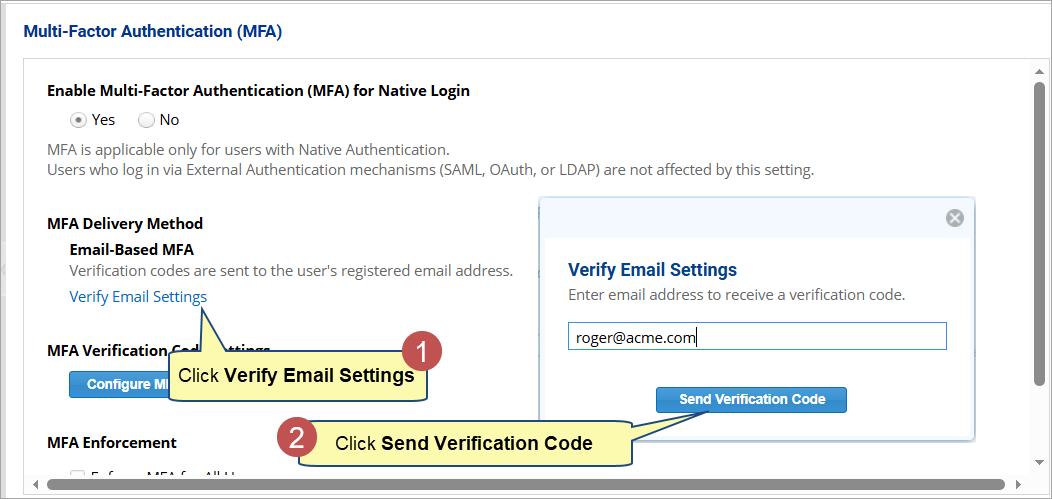
Step 5. Verify Email Settings
Verify email settings to send a test message using the configured SMTP server.
NOTE |
The Verify Email Settings step is mandatory. If it fails, MFA verification emails will not be delivered and users may be blocked from login. |
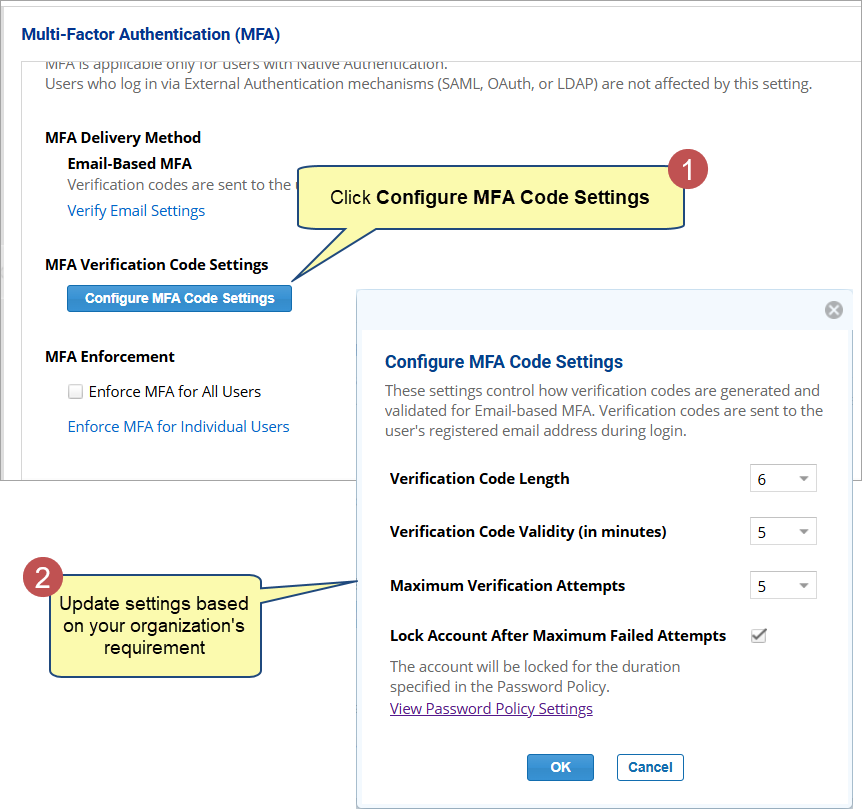
Step 6. Review MFA Verification Code Settings
Review code parameters such as expiry duration and code length. Change these settings only if your organization has a specific requirement.
Step 7. Configure MFA Enforcement
Select an enforcement option based on your rollout strategy:
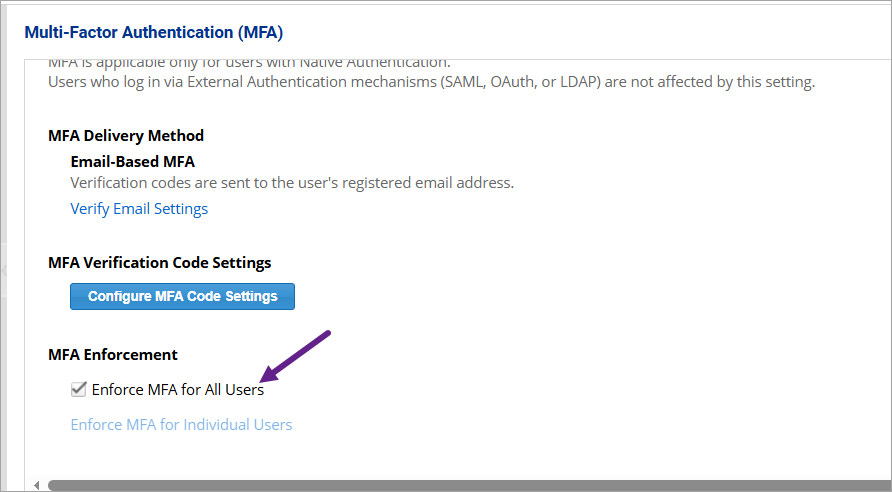
Enforce for All Users
When selected, all users with Native Authentication must complete MFA verification during their next login.
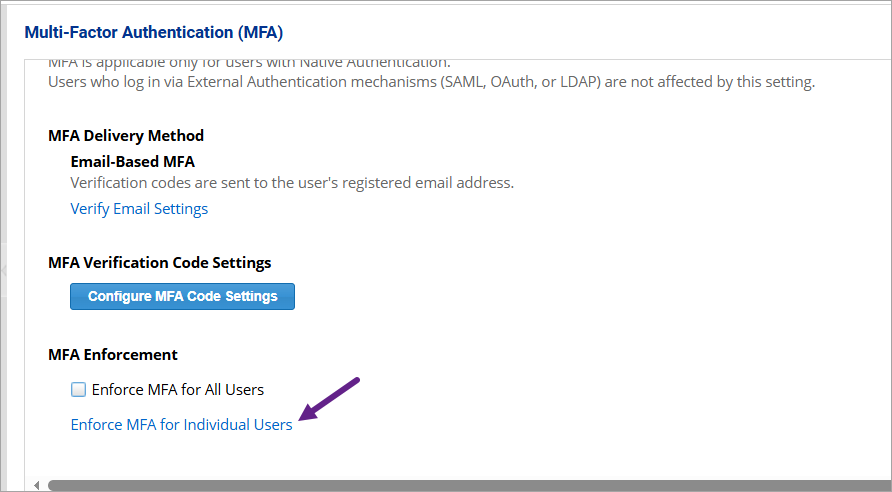
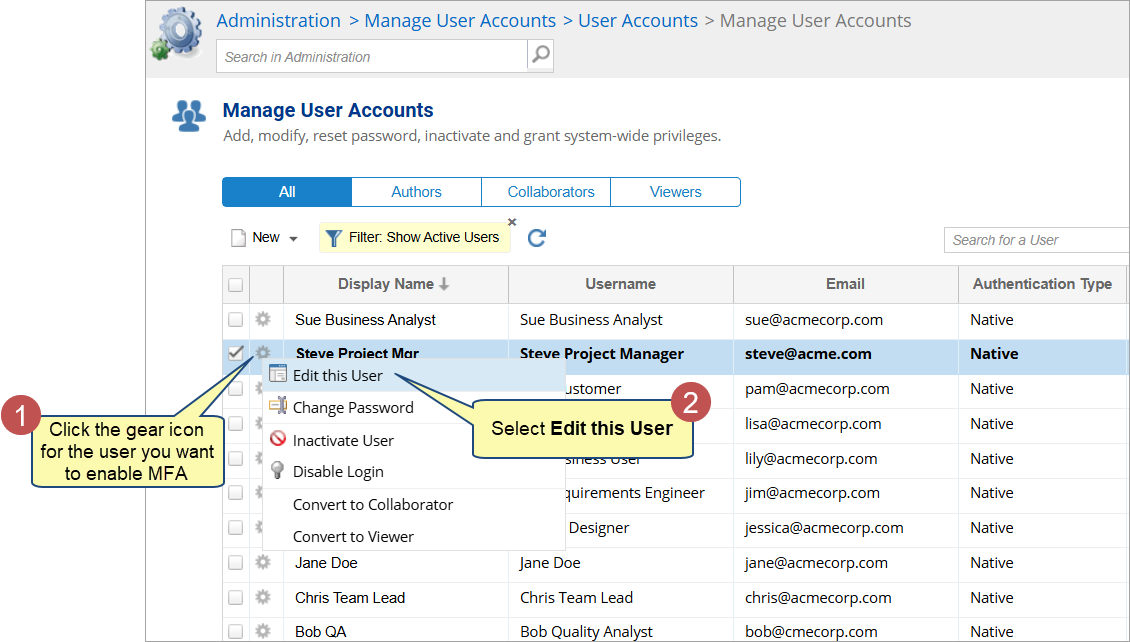
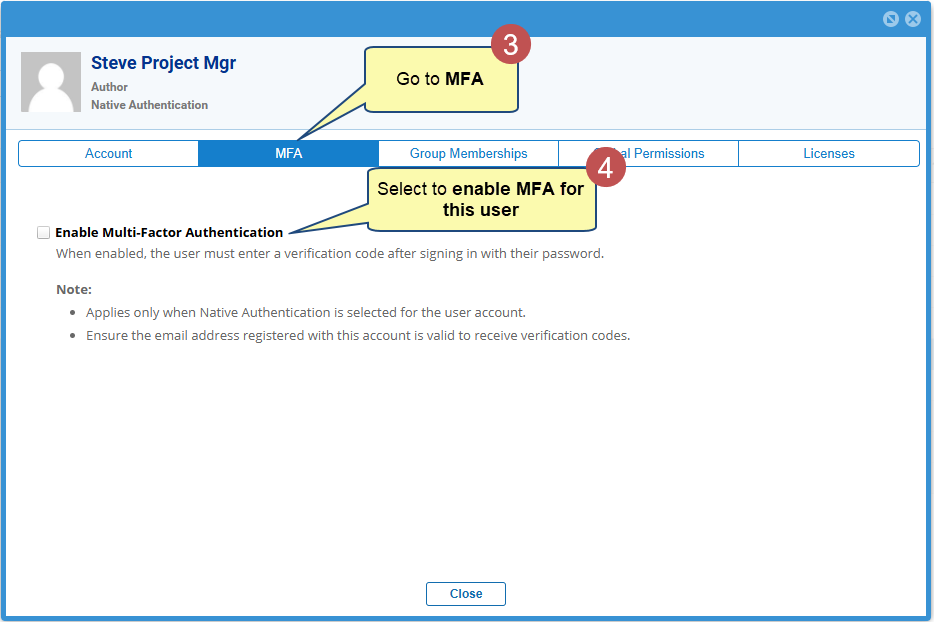
Enforce MFA for Individual Users
When selected, opens the user accounts list, where you can toggle MFA on or off per account. Use this option when rolling out gradually or when exempting service accounts.
Verification and Login – How it Works
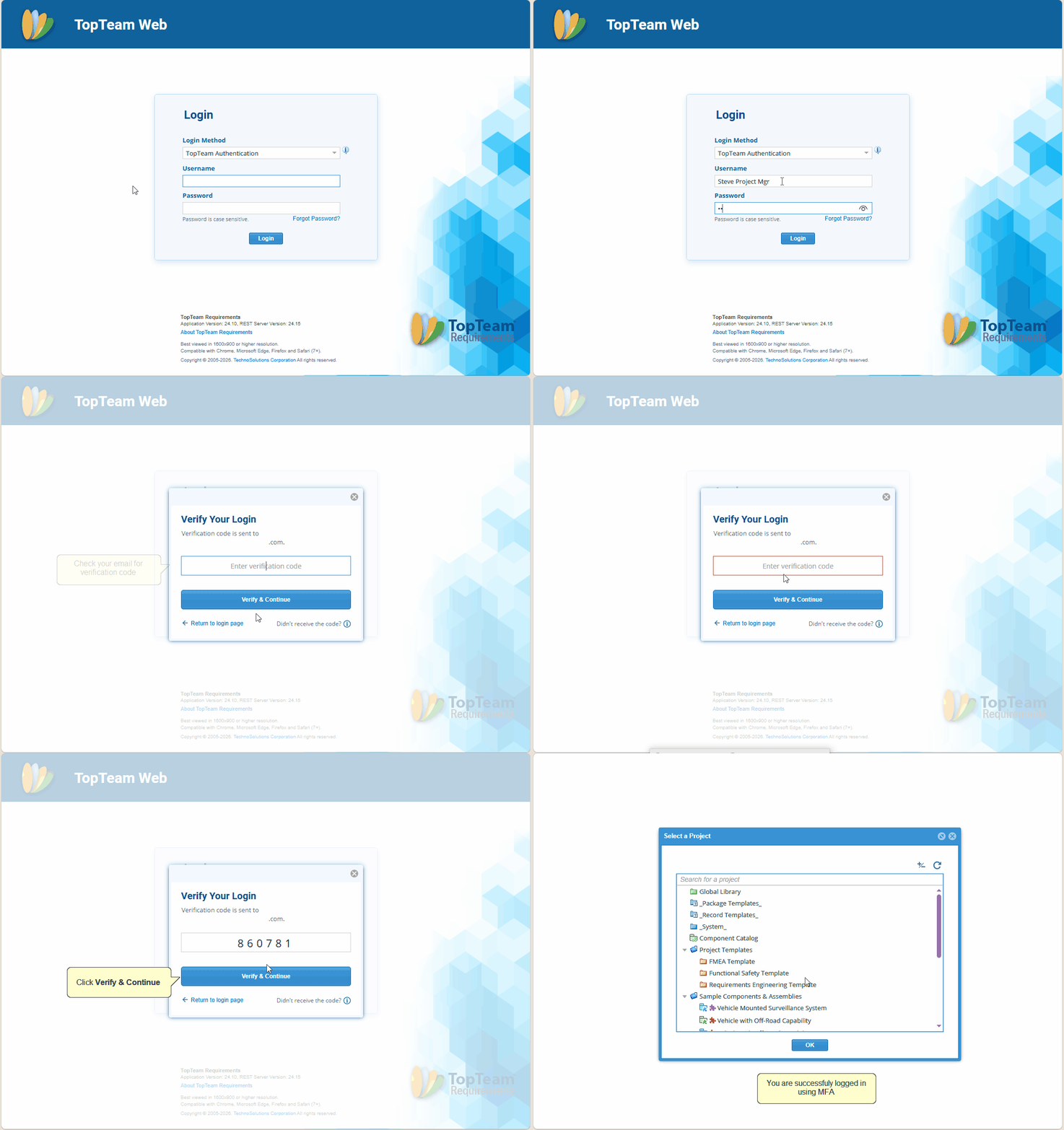
Once MFA is enabled, the login process follows these steps:
- The user enters their credentials on the TopTeam login screen.
- TopTeam sends a one-time verification code to the user’s registered email address.
- The user enters the verification code when prompted.
- If the code matches, the user proceeds into the system.
Troubleshooting
Users not receiving the verification email
- Run Verify Email Settings from the MFA panel.
- Ask users to check their spam or junk folder.
- Confirm the user’s registered email address is correct.
- Review SMTP server logs for delivery errors.
MFA option not visible in settings
- Contact TechnoSolutions Support.
See Also
Native Authentication Overview
Revised: May 5, 2026